CUCM User Accounts
Several CUCM features require user accounts for authentication purposes. These features include an administrative web page, user web pages, and the following applications:
■ Cisco Unified Attendant Console
■ Cisco Unified Extension Mobility
■ Cisco Unified Manager Assistant (CUMA)
Cisco IP Phones can browse corporate and personal directories to find the directory number of a user. CUCM is provisioned with a user's first and last name to provide this directory-browsing functionality.
CUCM IP phone services can be configured to require a user login before providing access to the service. Users can authenticate with their username and password (alphanumeric) or PIN (numeric), depending on the needs of the application. CUCM sends authentication requests to an internal library called the Identity Management System (IMS) library, which is responsible for authenticating the user login credentials against the user database.
User Account Types
There are two types of user accounts in CUCM:
■ End users: End users are associated with an individual and have an interactive login. End users can have administrative roles based on the user group role configuration.
■ Application users: Application users are associated with applications such as Cisco Unified Attendant Console, Cisco Unified Contact Center Express (UCCX), or Cisco Unified Manager Assistant. The mentioned applications need to authenticate with CUCM, but application users do not have the ability to interactively log in. Application users are leveraged for internal process-level communications between applications.
Table 6-1 summarizes the differences between end users and application users.
|
End Users |
Application Users |
|
Associated with an individual |
Associated with an application |
|
Provide interactive logins |
Provide noninteractive logins |
|
User feature and system administration authorization |
Application authorization |
|
Included in phone directory |
Not included in phone directory |
|
Can be provisioned and authenticated using an external LDAPv3 directory server |
Cannot use LDAPv3 |
The attributes associated with end users are separated into three categories, as follows:
The attributes associated with end users are separated into three categories, as follows:
■ Personal and organizational settings:
— User ID, first, middle, and last name —Manager user ID, department —Phone number, mail ID
■ Password
■ CUCM administration settings:
—PIN, SIP digest credentials —User privileges (user groups and roles) —Associated PCs, controlled devices, and directory numbers —Application and feature parameters
User Privileges
CUCM allows for the assignment of user privileges to application users and end users. Privileges that can be assigned to users include the following:
■ Access to administration and user web pages
■ Access to specific administrative functions
■ Access to application interfaces such as Computer Telephony Integration (CTI) and Simple Object Access Protocol (SOAP)
User privileges are configured using two configuration entities:
■ User groups: A collection of application users and end users with similar privilege levels
■ Roles: Resources for an application
Each role refers to exactly one application, and each application has one or more resources. Access privileges are configured per application resource in the role configuration. Roles are assigned to user groups.
Figure 6-1 illustrates the access that four users have to two different applications. The needs of the four users are achieved through the assignment of two user groups.
User1 and User2 are assigned to Group1, which has two roles assigned to it for Application1. The privilege levels of Role1 and Role2 refer to the same application but provide different levels of access (privileges) to the resource. The overlapping configuration can be configured to give the highest or lowest overlapping privilege level.
User3 is assigned to both Groupl and Group2. Groupl and Group2 have role assignments of 1, 2, and 3. Rolel and Role2 both control different privilege levels to Applicationl and Application2. It is best to avoid overlapping role privileges (Rolel and Role2) when possible.
User4 is assigned to Group2, which has privilege levels to Applicationl and Application2, controlled through Role2 and Role3. User4 does not have overlapping privilege challenges.
Figure 6-1 User Privilege Component Interaction Users n : n Users Groups n : n Roles 1 : 1
Applications 1 : 1 Privileges

Role1
Role3
Role1
Role3
Application1
|
Role2 |
||||||||||||||||||||||||||||||||||||||||||||||||||||||||||||||||||||||||||||||||||||||||||||||||||||||||||||||||||||||||||||||||||||||||||||||||||||||||||||||||||||||||||||||||||||||||||||||||||||||||||||||||||||||||||||||||||||||||||||||||||||||||||||||||||||||||||||||||||||||||||||||||||||||||||||||||||||||||||||||||||||||||||||||||||||||||||||||||||||||||||
|
Application1 Application2 Resource1 Resource2 Resource3 Resource4 Read (None) Resource3 -<-Read, Update Resource1 -<-Read, Update Resource2 -<-Read Read Read (None) Read, Update The goal of the configuration illustrated in Figure 6-2 is to create administrative groups that have read, write, and update access to the Communications Manager configuration web pages (CCMAdmin), and junior-level administrators who have read-only privileges to the CCMAdmin configuration web pages. The following text relates to the example illustrated in Figure 6-2. CUCM has various Administration web pages associated with functions, such as the Call Park web pages (used to the configure call park feature), the AAR Group web pages (used to configure automated alternate routing), the CallManager group web pages (for CUCM configuration), and the DRF Show Status page (used to check the status of Disaster Recovery System backup or restore jobs). CUCM has many default roles, called standard roles. Some of the standard roles are associated with CUCM Administration applications (CCMAdmin). There are many predefined roles in CUCM by default, but we explore two in this example. Two standard roles for CUCM Administration exist: Standard CCMAdmin Administration and Standard CCMAdmin Read-Only. Standard CCMAdmin Administration has all privileges of the CCMAdmin application set to Update, whereas Standard CCMAdmin Read-Only has CCMAdmin privileges set to Read-Only Access. Standard roles can be copied, renamed, and reconfigured to achieve the needs of the organization deploying CUCM. CUCM has many default user groups, called standard user groups. Two examples of standard user groups are Standard CCM Super Users and Standard CCM Read-Only. User group Standard CCM Super Users is associated with role Standard CCMAdmin Administration, and user group Standard CCM Read-Only is associated with role Standard CCMAdmin Read-Only. This is illustrated in Figure 6-2. To assign an end user full access to all configuration pages of CUCM Administration, you have to assign the end user just to the Standard CCM Super Users group. End users who should have read-only access to all configuration pages of CUCM Administration just have to be assigned to the Standard CCMAdmin Read-Only user group. The appropriate application privileges are configured in the default roles, and the default roles are assigned to the corresponding user groups. The final step required to achieve the objective of Figure 6-2 is to assign the users John and Jane to the Standard CCM Super Users group and to assign Kim and Tom to the Standard CCM Read-Only user group. Figure 6-2 Roles and User Groups User Group- Standard CCM Super Users Standard CCM ReadOnly Standard CCMADMIN Administration Standard CCMADMIN Read-Only Application — Cisco CallManager Administration Cisco CallManager Administration • Call Park Web Pages • AAR Group Web Pages • CallManager Group Web Pages • DRF Show Status Page ->- Privilege Update NOTE CUCM has numerous default user groups that cover the needs of most requirements. Examples of default user groups include the following: ■ CCM Super Users ■ Standard CCMAdmin Read-Only ■ Standard CAR Admin Users ■ Standard CCM Server Maintenance ■ Standard CCM Server Monitoring ■ Standard CCM Phone Administration ■ Standard CCM End User ■ Standard CCM Gateway Administration User Management User management options in CUCM include the following: ■ CUCM Administration: Suitable for configuring a small number of users or doing single updates to the configuration of a user. CUCM administration of users is not scalable for large deployments of CUCM. ■ Bulk Administration tool (BAT): BAT is a tool that allows large insertions, updates, and deletions of users when LDAPv3 synchronization is not leveraged. Many learning institutions have frequent changes to the user database. BAT is an excellent tool for initial deployment or large updates to many configuration options, including the user database. ■ LDAPv3 integration: LDAPv3 integration allows end users to be synchronized from a centralized database to CUCM. This option proves useful when all the end users already exist in an LDAPv3 database. LDAPv3 user synchronization is available only to end users. LDAPv3 authentication is another LDAPv3 feature that can be leveraged. LDAPv3 authentication passes any authentication requests through the CUCM server to the LDAPv3 server where the user login is authenticated. LDAPv3 authentication has the benefit of maintaining one central password database. CUCM does not replicate the passwords that are configured in the central LDAPv3 database. LDAPv3 synchronization replicates data to the CUCM database. User data cannot be modified from CUCM administration tools when LDAPv3 synchronization is enabled. User data is modified on the LDAPv3 server by the LDAPv3 administrator, and resynchronization will occur at the next resynchronization interval. Depending on the resynchronization schedule, the resynchronization event might not occur for days or weeks. Manual synchronization can be performed at any time. Passwords are not replicated to the CUCM database when LDAPv3 authentication is turned on. User passwords may exist in both CUCM and the LDAPv3 server if the user exists in both servers. It is recommended to combine LDAPv3 authentication with LDAPv3 synchronization to avoid inconsistencies in usernames and to eliminate the need for maintaining multiple usernames. Table 6-2 summarizes the differences between the local CUCM database, LDAPv3 synchronization, and LDAPv3 authentication. Readers' Questions
Managing User Accounts CUCM user management is performed from the Cisco Unified Communications Manager Administration User Management menu. The administrator must use an account with user management privileges. Any end-user account that has the user management privilege assigned can modify user accounts (including the CCMAdministrator). The User Management menu includes options to configure application users, end users, roles, and user groups, as shown in Figure 6-3. Figure 6-S User Management Menu
Figure 6-4 shows the Application User Configuration page. The most important settings are the user ID and the password. The user ID and password must match on the application server if the application user is configured for integration with another server. The application user could be associated with multiple devices (phones, CTI route points, and pilot points). Navigate to User Management > Application User from the CUCMAdministration to add an application user. Click the Add New button. Figure 6-4 Application User Configuration Figure 6-4 Application User Configuration 
At the bottom of the Application User Configuration page, the application user can be added to user groups, as shown in Figure 6-5. The roles that are assigned to the user groups are listed in the Roles field under the Groups field. Figure 6-5 Application User Group Configuration Add Application User to User Groups Figure 6-5 Application User Group Configuration Add Application User to User Groups
The End User Configuration page is similar to the Application User Configuration page. User ID, password, and group membership are the most important settings. Figure 6-6 displays the End User Configuration page in CUCM. Navigate to User Management > End User to add an end user in CUCM Administration. Click the Add New button. Standard roles cannot be deleted or modified. Custom roles, however, can be created from scratch or by copying and then modifying a standard role. Figure 6-7 shows an abbreviated listing of CUCM roles. Navigate to User Management > Role to find an existing role configuration. Click the Find button to display all existing roles. Click Find. Figure 6-6 End User Configuration 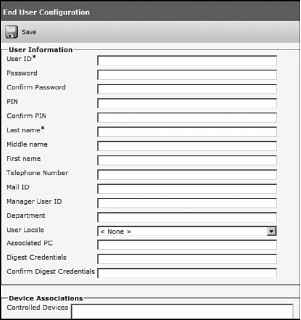
Figure 6-7 Default Role Configuration
Figure 6-8 displays the Role Configuration page. When configuring a new role, you have to select an application on the configuration web page. The application resources will be displayed and read, or update privilege can be assigned to each. The Role Configuration pages are accessible via User Management > Role in CUCM Administration. Figure 6-8 Role Configuration Page Selected Application Figure 6-8 Role Configuration Page Selected Application
Standard user groups cannot be deleted or modified. Custom user groups can be created from scratch or by copying an existing user group. Figure 6-9 displays an abbreviated list of the default user groups. Navigate to User Management > User Group and click the Find button to display existing user groups. Click Find. Click a user group. Figure 6-9 Default User Groups
Figure 6-10 displays the User Group Configuration page in which users can be added to a user group. In this example, the Standard CCM Super Users Group was selected. Figure 6-10 User Group Configuration Figure 6-10 User Group Configuration 
Figure 6-11 displays the end-user addition to a user group. Click the Add End Users to Group button of Figure 6-10 to display the user search page displayed in Figure 6-12. Enter a search string and click Find. Select the user by checking the box next to the user, and then click Add Selected. Figure 6-11 User Group Configuration Figure 6-11 User Group Configuration 
Assign roles to a user group by selecting the Assign Role to User Group item from the Related Links list box in the upper right of the User Group Configuration page. A new window will display where you can assign or delete roles, as shown in Figure 6-12. Figure 6-12 User Group Role Assignment Figure 6-12 User Group Role Assignment 
Click the Add Role to Group button. Select the roles that you would like to add, as shown in Figure 6-l3, and then click the Add Selected button. Figure 6-13 User Group Role Assignment
Continue reading here: Lightweight Directory Access Protocol Was this article helpful? |
||||||||||||||||||||||||||||||||||||||||||||||||||||||||||||||||||||||||||||||||||||||||||||||||||||||||||||||||||||||||||||||||||||||||||||||||||||||||||||||||||||||||||||||||||||||||||||||||||||||||||||||||||||||||||||||||||||||||||||||||||||||||||||||||||||||||||||||||||||||||||||||||||||||||||||||||||||||||||||||||||||||||||||||||||||||||||||||||||||||||||

